Android · iOS · In development · Working name
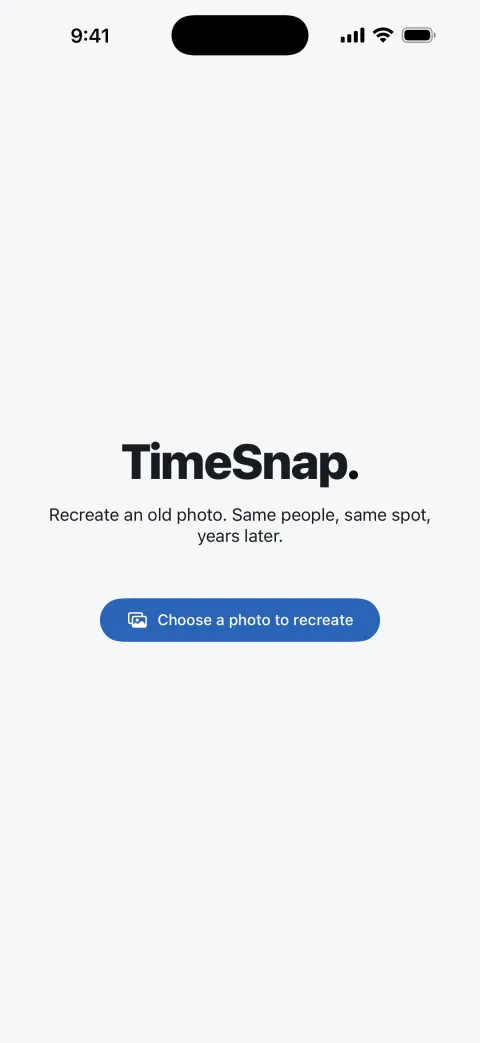
Recreate an old photo. Same people, same spot, years later.
You know the shot: you and your siblings on the same bench, twenty years apart. TimeSnap puts the old photo over your live camera as a see-through ghost, then helps you close the last few feet: which way to step, whether to zoom, how to tilt. You shoot, and it shows you then and now. No account, and it never goes online.
Close is good enough
Recreating a family photo, a holiday snap or an old print is mostly a matter of standing in the right place. You get yourself to roughly the right spot. TimeSnap helps with the part that’s hard to judge by eye: the last few feet of framing.
It doesn’t need anything from the old photo except the picture. Scans of prints and old phone photos both work, with no location or camera data required.
What makes it different
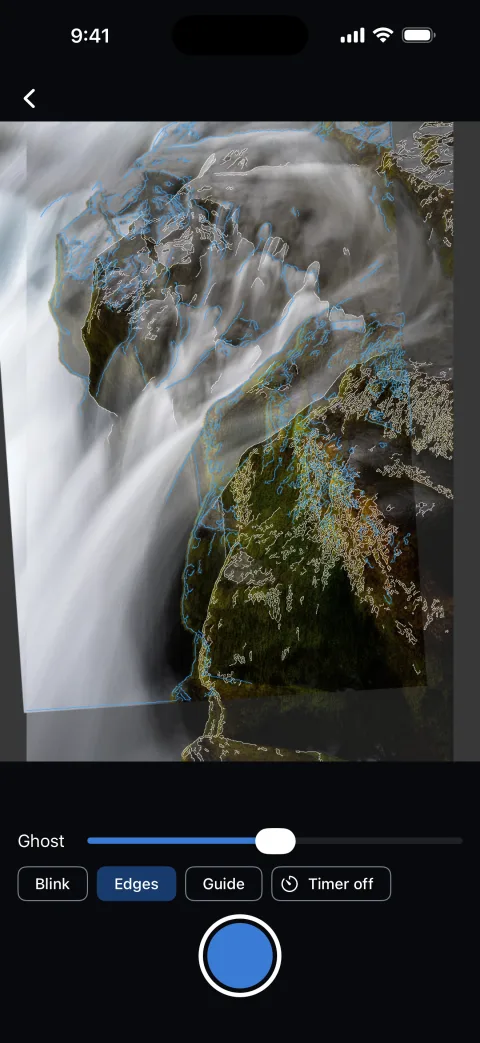
More than a ghost. Other apps like this give you a faded overlay and leave the rest to you. TimeSnap adds edge outlines of both scenes and live hints on which way to move.
Worked out on the phone. The hints come from matching features between the old photo and the live camera, right on the phone. Nothing is sent anywhere to do it.
Same shape, every time. The new photo is cropped to the shape of the old one, so the pair lines up exactly.
It sees one photo. You pick the old photo with the phone’s own photo picker, so the app gets that picture and never your library.
What it does
The same on Android and iPhone.
LINE IT UP
Pick the old photo
From your library, with the phone’s photo picker. Scanned prints and phone photos both work, turned the right way up automatically.
LINE IT UP
Ghost overlay
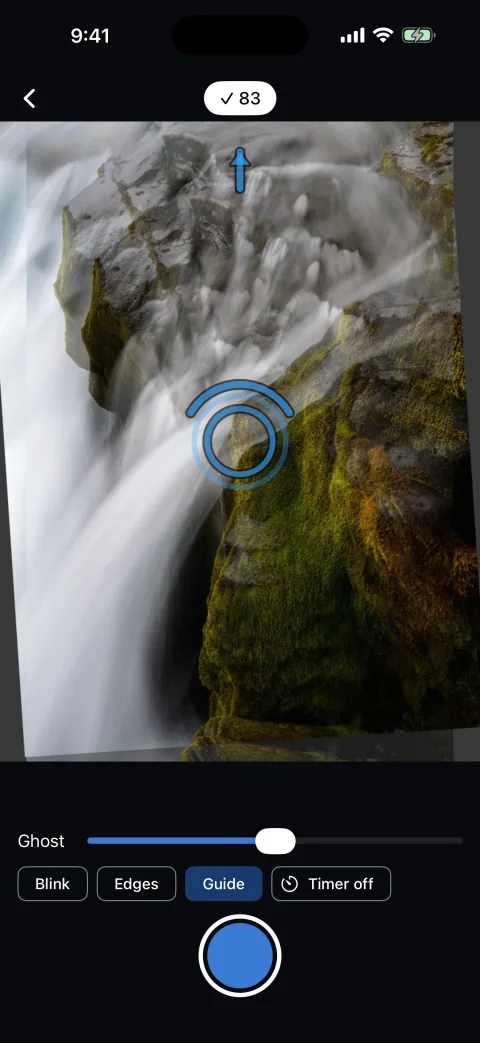
The old photo floats over the live viewfinder. The Ghost slider sets how see-through it is.
LINE IT UP
Blink
Flips the old photo fully on and off a few times a second, so the differences jump out.
LINE IT UP
Edges
Outlines of both scenes: white for then, blue for now. When the white lines sit on the blue ones, you’ve matched.
LINE IT UP
Guide
Arrows to pan, rings to zoom in or out (or step closer or back), and an arc to rotate the phone. The further off you are, the bigger and brighter they get.
LINE IT UP
Match score
A score from 0 to 100 at the top of the camera. At 70 or more it turns white with a ✓.
LINE IT UP
Portrait or landscape
Old photos either way round work. Hold the phone the other way from the photo and it tells you to rotate. Pinch to zoom.
TAKE IT
Shutter and timer
Shoot straight away, or set a 3- or 10-second timer so you can be in the shot. The countdown shows in the middle of the screen.
TAKE IT
Saved to your photos
Cropped to match the old photo and saved as a new photo: in Pictures/TimeSnap on Android, in Photos on iPhone.
SEE IT
The reveal
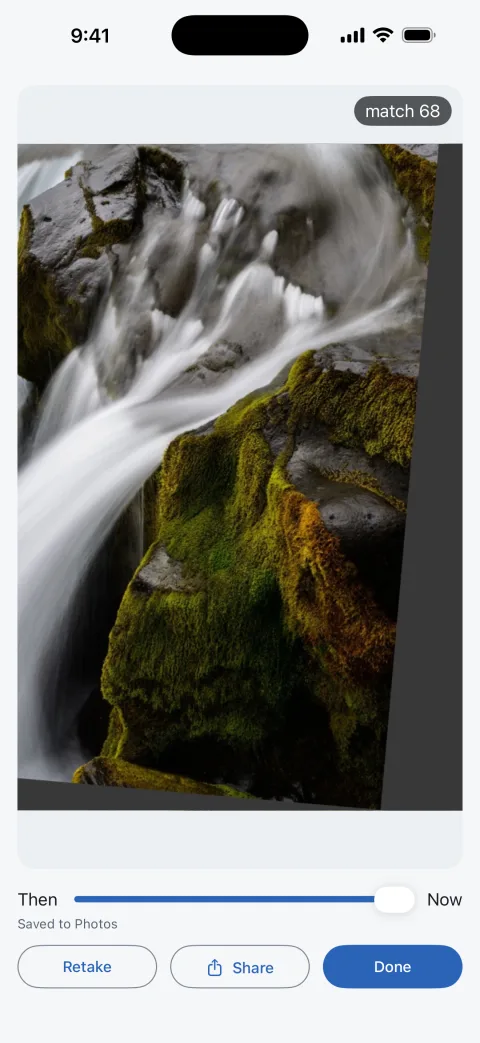
The old photo is on screen and the new one fades in over it. Then drag the Then ↔ Now slider to scrub between them, with the shot’s match score.
SEE IT
Share, retake or done
Share the new photo through the phone’s share sheet, take it again, or start on another.
LOOK
Light or dark
Follows the phone’s setting. The camera screen is always dark, like any camera app.
In use
Screens from the current iPhone build; the Android app looks the same. The waterfall is a sample picture standing in for an old photo, and the camera is simulated, so “now” is the same picture moved. Real then-and-now pairs will replace these after field testing.
How it goes
01
Choose the photo. Tap “Choose a photo to recreate” and pick the old picture.
02
Get to the spot. Go to where it was taken, as close as you can. This part is up to you.
03
Line it up. Fade the ghost, blink between then and now, or match the outlines. With Guide on, follow the arrows, rings and arcs until the score shows ✓.
04
Shoot. Tap the shutter. To be in the photo, set the timer to 3 or 10 seconds first.
05
Reveal. Watch then fade into now, drag the slider, and share it, retake it or start another.
What it doesn’t do (yet)
It won’t find the spot for you. It doesn’t use location, and it assumes the old photo has none.
It saves the new photo, not a combined one. There’s no side-by-side image, GIF or video to share yet.
No history yet. There’s no screen for coming back to the same shot every few years.
You press the shutter. It doesn’t shoot by itself when you’ve matched, and it doesn’t straighten the result afterwards.
It helps; it doesn’t promise. The guidance is classic image matching, not AI, and it hasn’t been tested on many real old prints yet. It gets you close; your eye does the rest.
Not in the stores yet. It runs on my own phones for now. The name is a working one, too.
Your photos stay on your phone.
Old family photos are personal. TimeSnap has no server to send them to, and it doesn’t go online at all.
01
No ads
Nothing in the app is selling your attention.
02
No account
No sign-up, no email, no sign-in.
03
No internet
No analytics, no tracking. On Android it doesn’t even have the internet permission; on iPhone it makes no network calls.
04
Only what it needs
The camera, the one photo you pick, and a way to save the new one. On iPhone it can add to Photos without being able to read them.
Then and now, and nobody else
The camera is analysed on the phone and thrown away. The old photo isn’t uploaded or copied, and the new one goes to your own photos. RotherTech never sees either.